iPeng now also on iPad
You have an iPad and you are a Squeezebox user? Or you do already use iPeng and you feel you sometimes need a big screen to search for stuff. The Squeezebox web interface is too slow for you? Then we’ve got something for you: iPeng for iPad is here.
iPeng for iPad is not just a scaled-up version of the iPeng App for iPhone and iPod, it’s a completely rewritten App with a new and exciting user interface.
What’s special about iPeng for iPad?
Full use of the big iPad screen
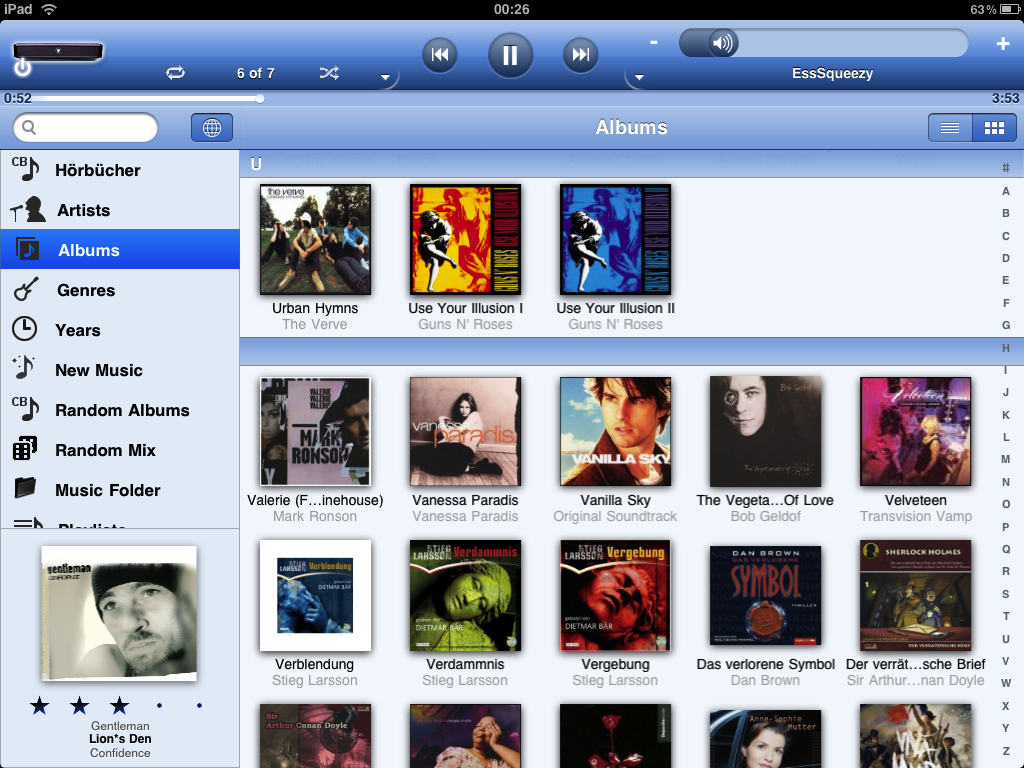
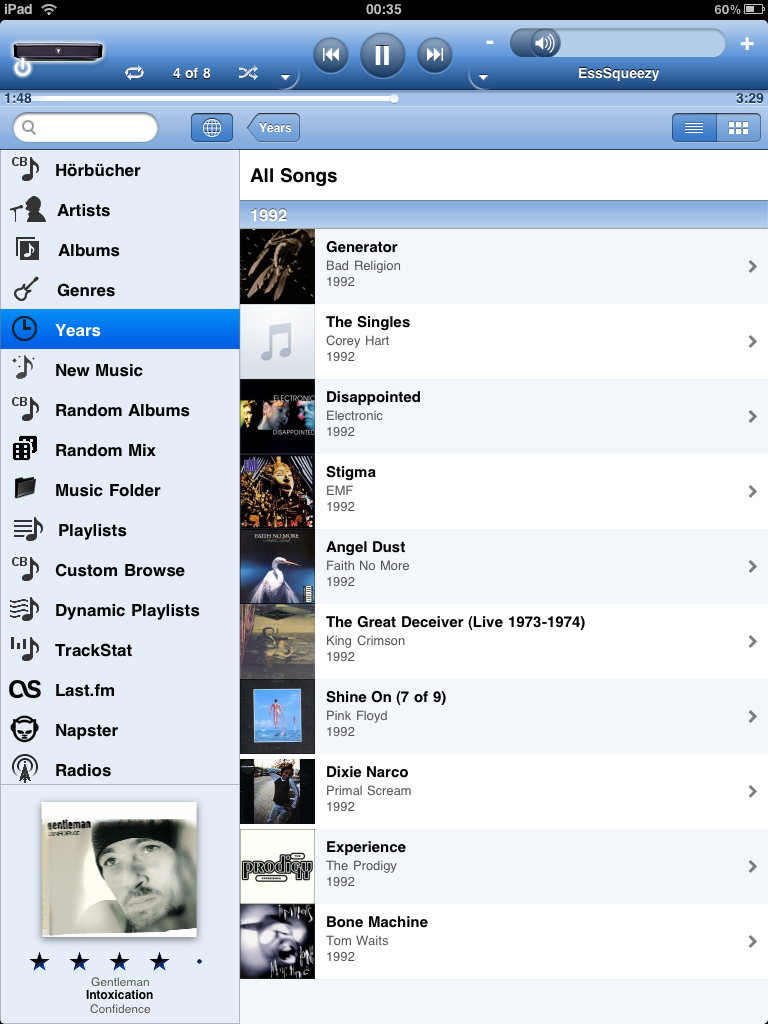
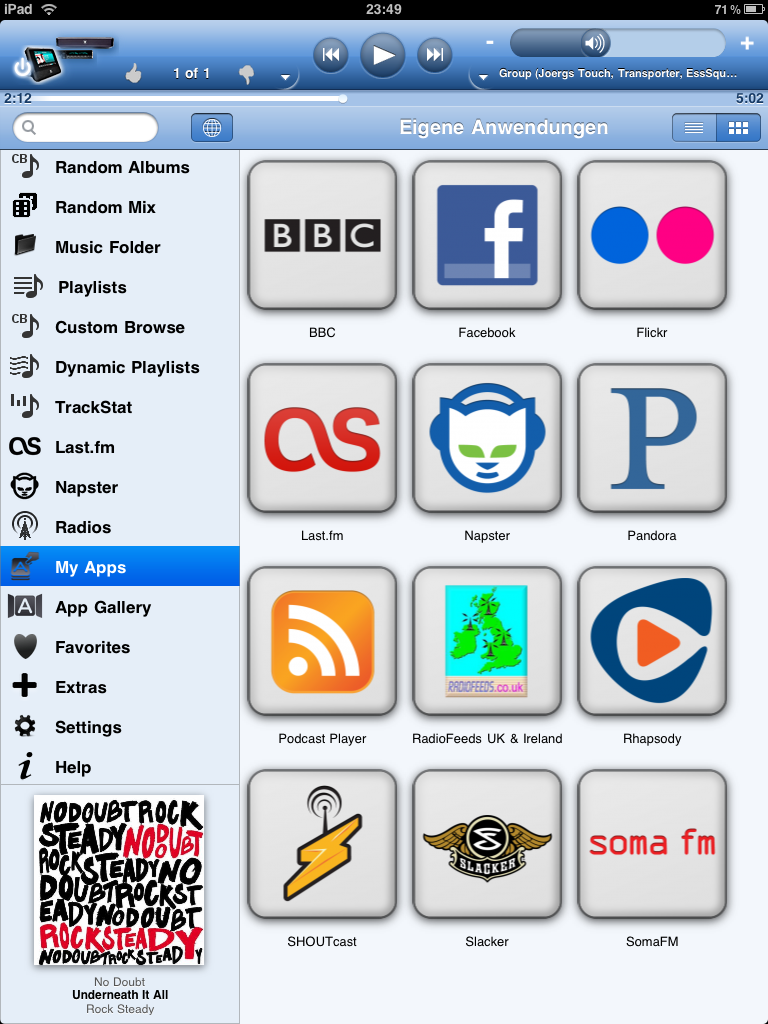
- iPeng for iPad doesn’t just scale up the menu, it uses the space of the screen to show you more of your content while giving you quick access to all player controls.
- You have permanent, direct access to the main menu, so you can easily switch between your own library and online sources
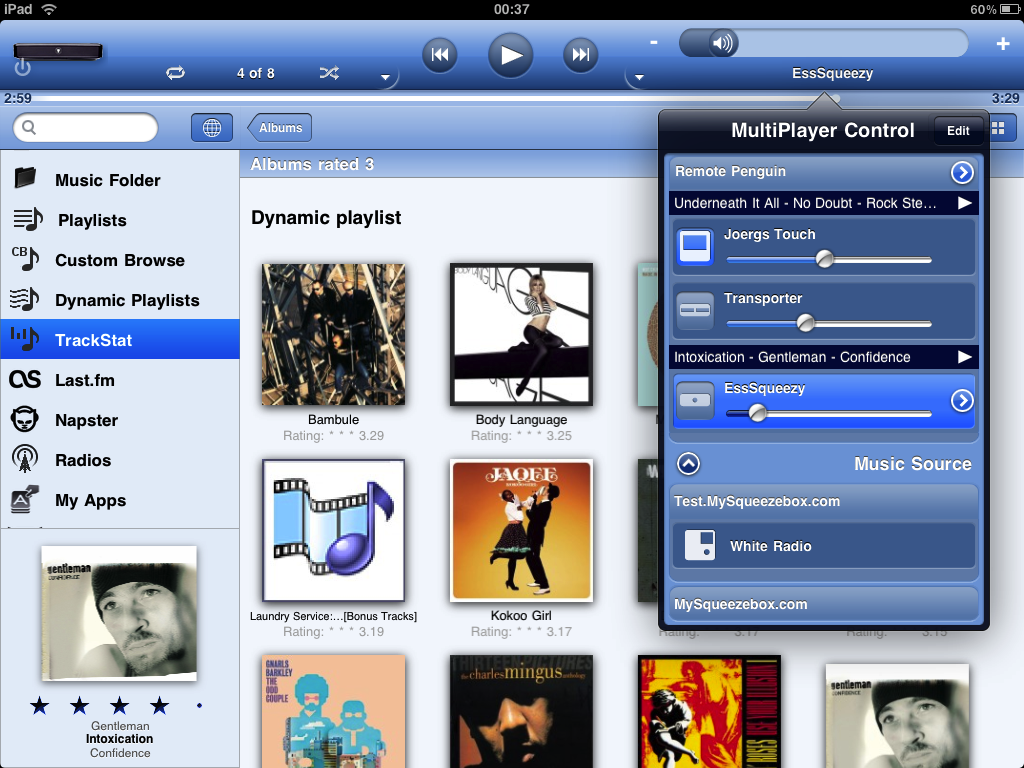
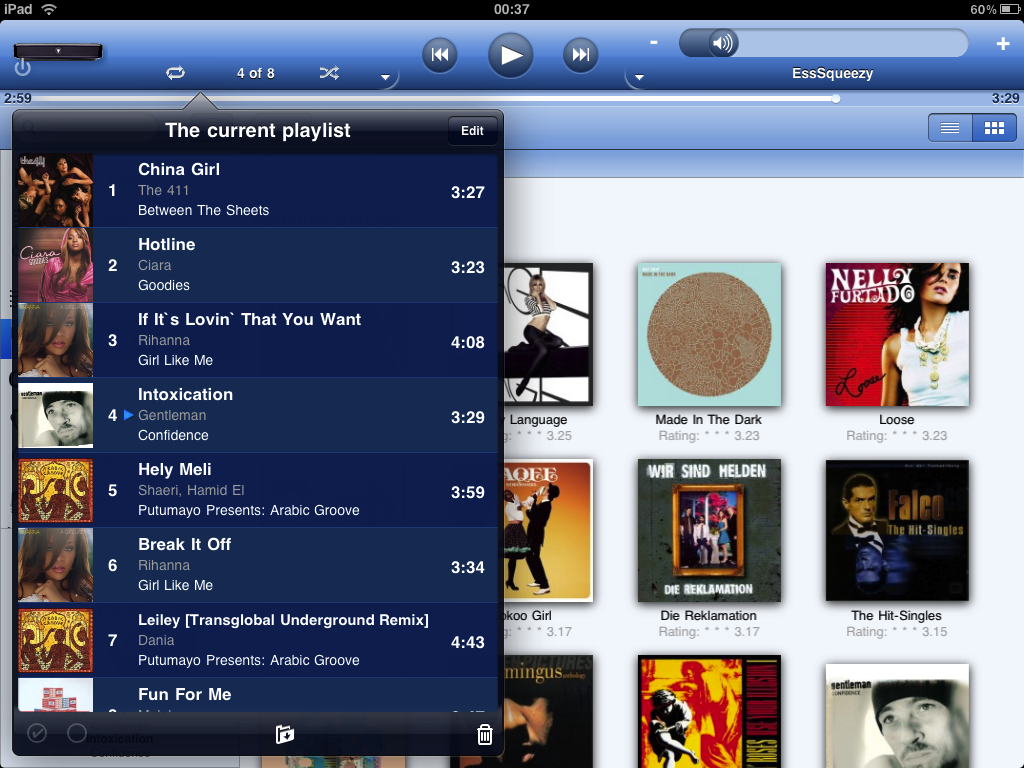
- All Player and Playlist controls are just a tap away
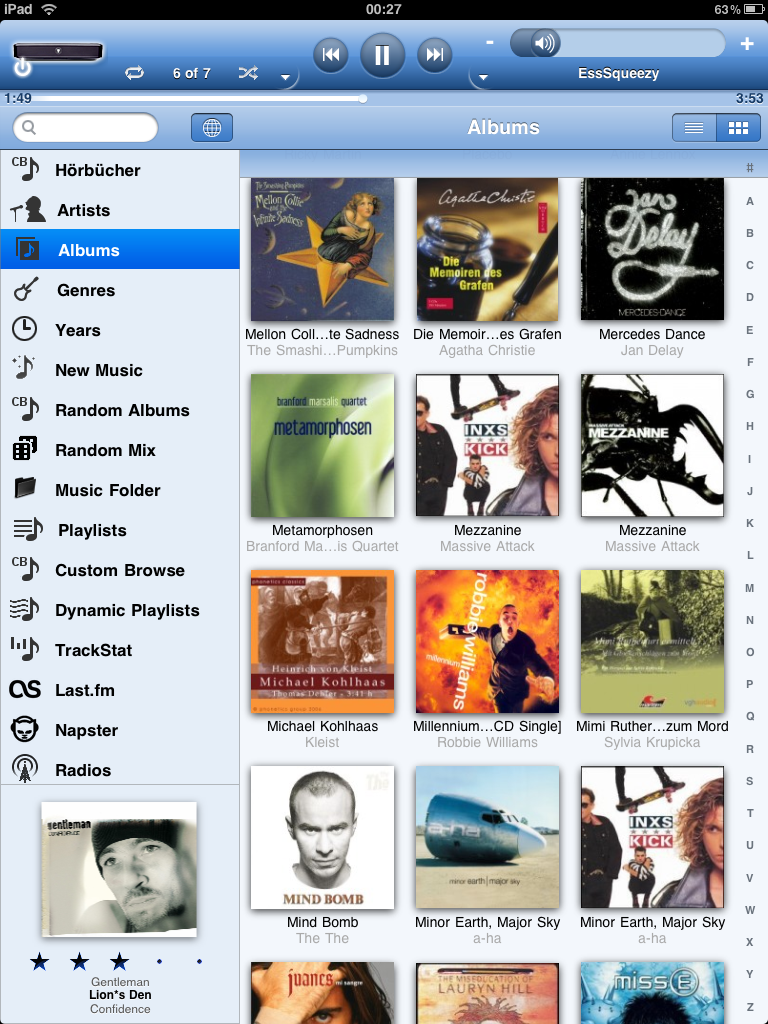
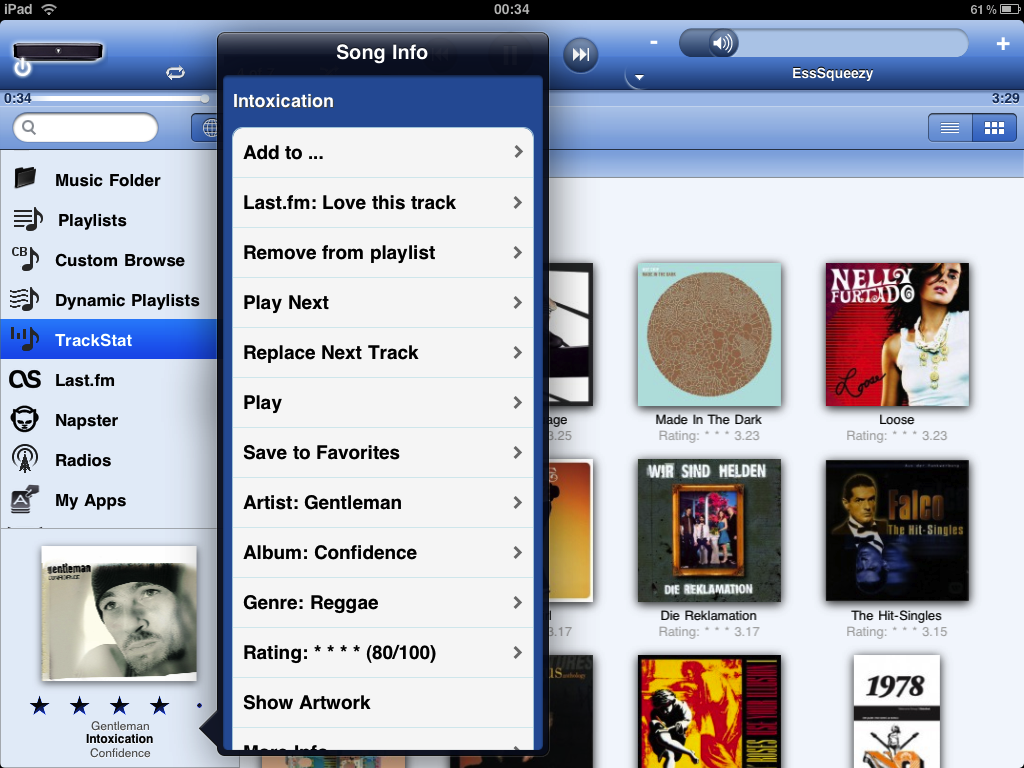
- Use of big artwork for best visual appearance. Finally you know why you added all that cover art to your music collection
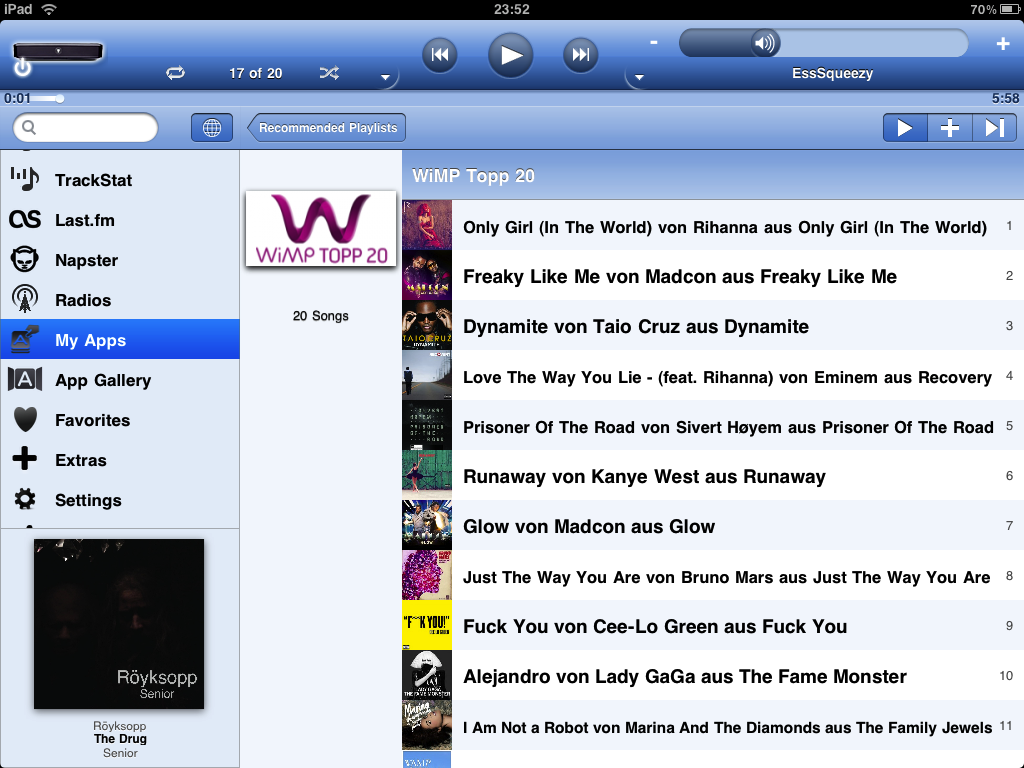
- See much more content at the same time than on a small screen; read even long titles as they are common in classical music.
Support of Portrait and Landscape Orientations
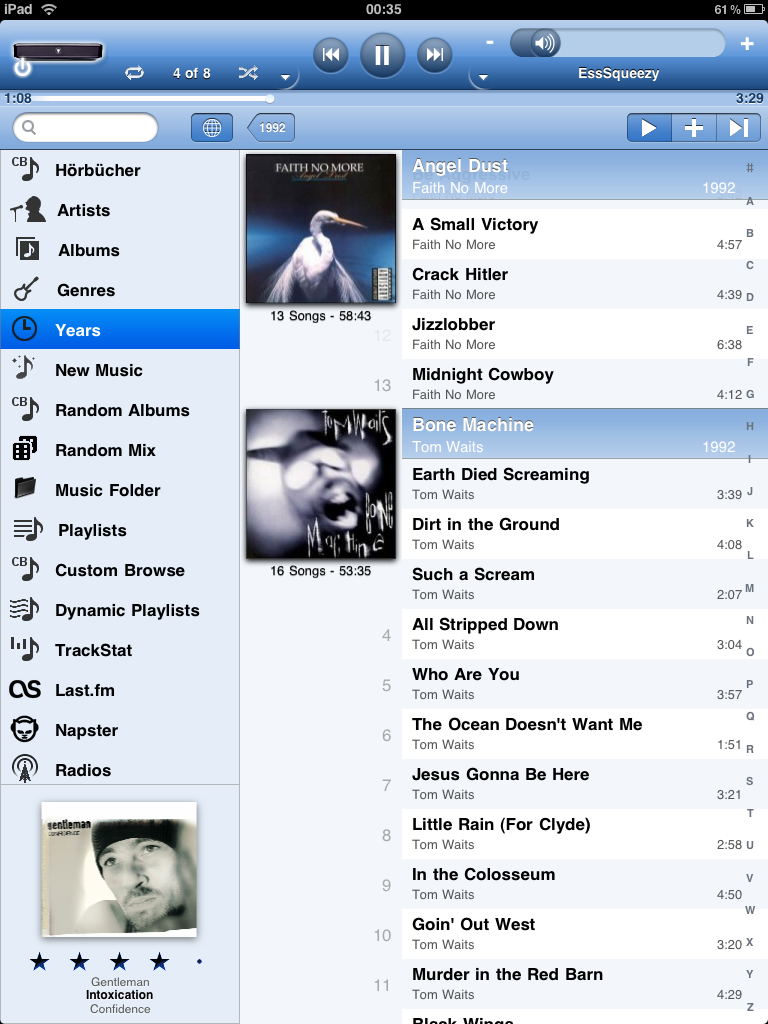
- Use portrait mode for long lists to see a lot of information simultaneously and to re-arrange your long playlists
- Use landscape mode to see your covers side-by-side.
Use Big Artwork for a Perfect Visual Experience
- You like the look of your music’s cover art? iPeng gives you big high-resolution thumbnails and let’s you scale them to fit with a pinch of your fingertips.
- For albums you can get a big cover and all the album’s tracks in a clear side-by-side view. Even for whole collections of albums at the same time, e.g. all albums by an artist.
Screen Savers to View Your Music From A Distance
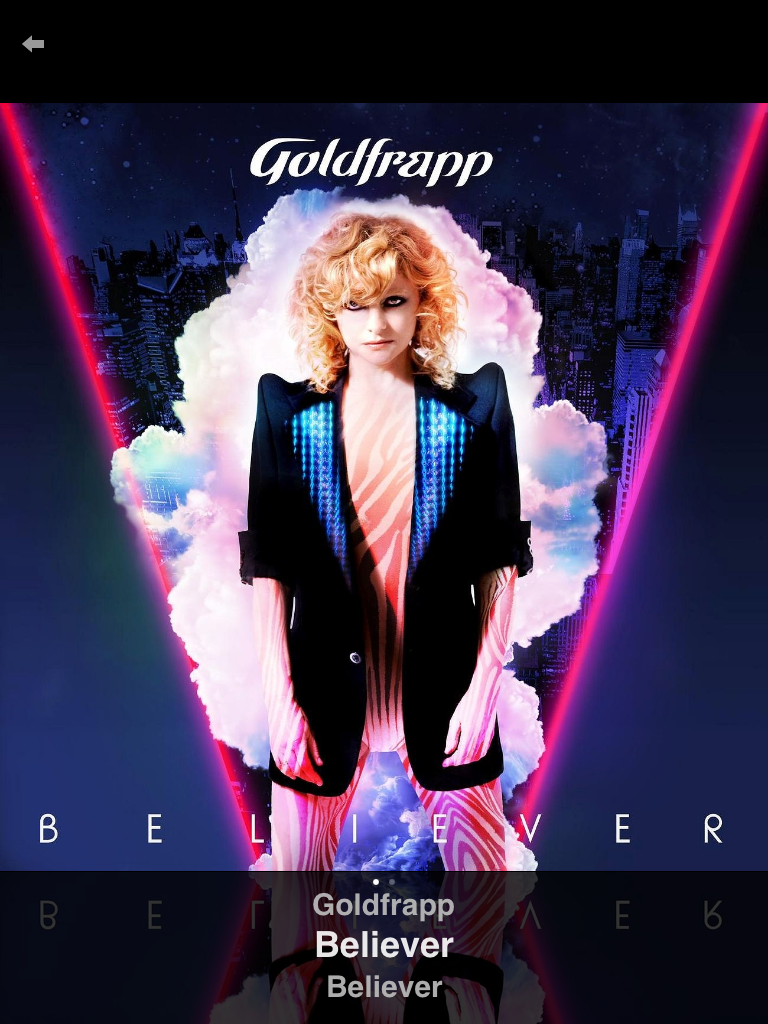
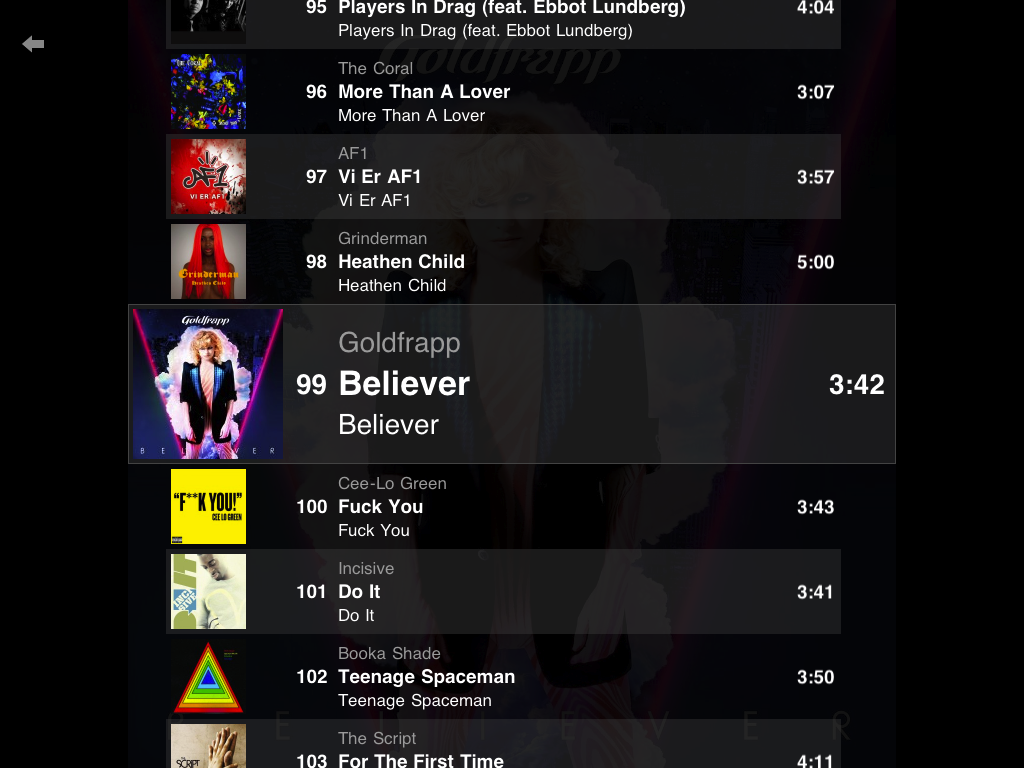
- If you want to keep your iPad running in a dock as a status screen, iPeng gives you a big cover view and a big playlist view to be watched from a distance.
- iPeng gives you access to all player functionality and the current playlist even from the screen saver.
Shortcut to Search Functions
- iPeng will always show you a search bar on the main screen giving you a quick way to search your library
- The search feature can switch between a local search (for your library only) and a global search
- Local search shows all results immediately in a single list
- Global search lets you search your library as well as online media from a single entry point. It can also be faster if you search on a slow server.
Get the Full Functionality
Of course, iPeng for iPad will give you all the functionality iPeng for iPhone provides to give you full control over your Squeezebox.
iPeng for iPad is now available on the App Store.